
Stop Doing Busywork: How to Let AI Actually Complete Tasks for You (Agent Mode Explained)
- Mike B.
- Apr 10
- 10 min read
Updated: Apr 14

Mastering ChatGPT Agent Mode: Automate Tasks and Enhance Productivity
Learn how to use ChatGPT Agent Mode to automate multi-step tasks like research, data entry, and planning while you stay in control of every action.
Remember when we built Custom GPTs that could answer questions and generate content? Now imagine AI that actually does the work for you.
You've come a long way. You started with your first AI conversation. Then learned the Role + Task formula. Built Projects that remember your context. Even created Custom GPTs to share with others.
I've spent 25+ years building software, and here's what I've learned: The real value isn't in planning. It's in execution. Agent Mode is the first time AI can actually execute tasks instead of just telling you how to do them.
Here's what's different. Projects remember your context. Custom GPTs package your expertise so others can use it. Agent Mode takes action. It browses websites. Fills out spreadsheets. Creates documents. Completes tasks that would take you hours.
The catch? You only get 40 agent messages per month on ChatGPT Plus, 400 on Pro. So strategy matters. In this article, I'm going to show you exactly when to use it, how to use it, and how to make those messages count.
Software is 90% thinking and 10% typing. Agent Mode handles the typing.
Trust but verify. You stay in control.
What Is Agent Mode? (And Why It Changes Everything)
Simple explanation: Agent Mode gives ChatGPT its own virtual computer. It can browse websites, run code, fill out forms, and create files. Not just suggesting what you should do. Actually doing it.
Think of it like this. Regular ChatGPT is a consultant who gives you advice. Agent Mode is an intern who does the work while you supervise.
What it can actually do:
Navigate websites and click buttons
Extract data and organize it into spreadsheets
Fill out forms (with your approval)
Create presentations or documents
Research across multiple sources and synthesize findings
Work for 5 to 30 minutes on complex tasks
Here's the key difference from everything we've learned so far. This is execution, not generation.
Work backwards. That's how I've always built software. Define the outcome you want. Then let the system figure out the steps to get there. Agent Mode works the same way.
How Agent Mode Actually Works (Behind the Scenes)
Behind the scenes, Agent Mode spins up a virtual computer with a browser, terminal, and file access. It can use multiple tools in one workflow.
Visual browser for clicking and navigating. Text browser for faster data extraction. Terminal for running commands. File manipulation. Even connections to your apps like Gmail and Google Drive (read-only access).
Here's the workflow. You describe what you want. Agent plans the steps. Executes them. Pauses for your approval on important actions. Continues until done.
You can interrupt, redirect, or take control at any point. When it needs you to log in somewhere, you take over the browser. It never sees your passwords.
Remember when we learned to give AI context in Projects? Agent Mode uses that same thinking. But now it acts on that context instead of just remembering it.

When to Use Agent Mode vs. Everything Else You've Learned
Quick comparison to what we've covered in previous articles:
Regular ChatGPT: For thinking, brainstorming, content creation. What we learned in "How to Talk to AI."
Projects and Gems: For personal context that remembers. What we built in "Stop Repeating Yourself."
Custom GPTs: For packaging expertise to share with others. What we created in "From Private to Public."
Agent Mode: For multi-step task execution. What we're learning right now.
Decision guide:
Planning something? Use regular ChatGPT.
Need it personalized? Use Projects.
Sharing with your team? Build a Custom GPT.
Actually doing it? Use Agent Mode.
Remember, you only get 40 messages per month on Plus. Be strategic about when you use them.
Your First Agent Mode Task: Step-by-Step
Let's start simple. I'll show you my process for using Agent Mode to research project management tools and create a comparison spreadsheet.
Work backwards. Know exactly what you want before you start.
Step 1: Access Agent Mode
Available to ChatGPT Plus ($20/month), Pro ($200/month), and Team users.
Two ways to activate it. Click the tools dropdown and select "Agent mode." Or type /agent in the chat box.
You'll see the interface change slightly.
Step 2: Describe Your Task Clearly
Software is 90% thinking and 10% typing. Think first.
Be specific about the goal, requirements, format, and constraints.
Here's an example prompt:
Research three project management tools: Asana, Monday.com, and ClickUp. For each, find: - Pricing for teams of 10 - Key features - Integration options with Slack and Google Drive - Average user rating from G2 or Capterra Create a comparison spreadsheet with this data. Use official websites and at least one review site. |
Step 3: Watch It Work
The agent shows you its plan first. Then starts executing. Opening websites. Navigating pages. Extracting data.
You'll see real-time updates of what it's doing. This task takes 5 to 15 minutes.
Step 4: Approve Important Actions
The agent pauses before consequential steps. You click to approve or modify.
If it needs a login, you take control of the browser. Log in yourself. Then hand control back to the agent.
Step 5: Review the Output
Agent creates the spreadsheet and shows it to you. Check the data. Trust but verify.
Ask for refinements if needed. Download it or keep working with it.
Step 6: Continue in Regular Chat
Once the agent completes the task, you can switch back to regular ChatGPT. Ask questions about the data. Request analysis or summaries. The context persists.
3 Agent Mode Tasks Worth Your Message Limit
You only get 40 agent messages per month on Plus. Here are three tasks I've used that save hours, not minutes. This is where Agent Mode earns its keep.
Task 1: Competitive Research → Formatted Report
What it does: Research 5 competitors, extract key information, create a comparison document with charts.
Why it's worth a message: Would take you 3+ hours manually.
Sample prompt:
Research these 5 SaaS competitors: [list names]. For each, find: pricing tiers, target market, top 3 features, recent product updates from the last 6 months. Create a Google Slides presentation with one slide per competitor plus a summary comparison slide. Use official websites, G2, and Crunchbase. |
Pro tip: Be specific about sources. Official websites. G2. Crunchbase. Avoid random forum posts.
Time saved: 3 to 4 hours.
My experience: I built payment processing systems handling $50M+ in monthly transactions. Competitive research was constant. Agent Mode would've saved me weeks.
Task 2: Calendar + Email → Meeting Briefs
What it does: Check your calendar, read relevant emails, create a brief for each meeting.
Why it's worth a message: Prep for an entire week of meetings in one shot.
Sample prompt:
Look at my Google Calendar for next week. For each meeting: 1. Check my Gmail for recent emails with that person or company 2. Research any relevant recent news about their company 3. Create a one-page brief with context, talking points, and summary of my last interaction Deliver as a single document with one brief per meeting. |
Pro tip: This uses connectors for Gmail and Calendar. Enable them first in settings.
Time saved: 2+ hours of meeting prep.
My take: Software is about reducing friction. This eliminates the context-switching overhead that kills productivity.
Task 3: Data Collection → Working Spreadsheet
What it does: Gather data from multiple sources, organize it, create a working spreadsheet with formulas.
Why it's worth a message: Manual data entry is soul-crushing work.
Sample prompt:
Create a spreadsheet tracking podcast analytics. Go to my Spotify for Podcasters dashboard and extract: - Episode name - Publish date - Total plays - Completion rate - Top 3 countries by listeners Pull data for all episodes from the last quarter. Add a column calculating plays per day since publish. Sort by completion rate descending. |
Pro tip: You'll need to log in when prompted. Then the agent continues working.
Time saved: 2 to 3 hours of tedious work.
Personal note: After building constituent management software, I know data entry pain. Let the agent handle it.
How to Write Effective Agent Mode Prompts
My approach after 25+ years building systems: Think like you're delegating to a junior employee. Clear instructions. Specific outcomes. Trust but verify.
The Agent Mode Prompt Formula:
1. STATE THE GOAL
What do you actually need done? Be specific about the end result.
Example: "Create a comparison spreadsheet of X" not "Research X"
2. LIST THE REQUIREMENTS
What must be included? What data points matter?
Example: "For each tool, I need: pricing, features, integrations, user ratings"
3. SPECIFY SOURCES (IF RELEVANT)
Where should the agent look? Official sites? Review platforms? Your own files?
Example: "Use official websites plus G2 reviews. Avoid forum posts."
4. DEFINE THE FORMAT
How do you want the output? Spreadsheet? Document? Presentation?
Example: "Deliver as a Google Sheets spreadsheet with comparison charts"
5. SET CONSTRAINTS
Budget limits? Time limits? Pages to check?
Example: "Check up to 10 pages per source, spend max 15 minutes"
6. SPECIFY APPROVAL POINTS
When should the agent stop and check with you?
Example: "Pause before booking anything or submitting forms"
Pro tips:
Batch multiple steps into one prompt. Saves message count.
Front-load all context. Agent doesn't remember previous chats in agent mode.
Think in systems. Define inputs, process, outputs.
Review outputs critically. AI is good, not perfect.
Use the same Role + Task thinking from our prompting article. It applies here too.
Agent Mode Limitations (What It Can't Do Yet)
Can't remember across sessions. Each agent task is independent. Context doesn't persist between agent mode activations.
Limited messages. 40 per month on Plus. 400 per month on Pro. Plan accordingly.
Not perfect at complex reasoning. Good at execution. Less good at nuanced judgment calls.
Can get stuck on tricky websites. CAPTCHAs, complex authentication, poorly designed sites can cause failures.
No memory feature yet. Disabled for safety concerns. May come later.
Takes time. Complex tasks can run 15 to 30 minutes. Don't use it for quick questions.
Costs matter. Pro tier gets 10x more messages but costs 10x more ($200/month).
My take: Agent Mode is like a capable intern. Great for defined tasks, not strategic thinking. Use it for execution. I use regular ChatGPT and Cursor for ideation and development work.
Safety and Control (You're Still in Charge)
You approve important actions. Agent pauses before booking, purchasing, submitting, or deleting things.
You can interrupt anytime. Stop button is always available.
You handle logins. Agent never sees your passwords.
Prompt injection safeguards built in. Protection against malicious websites trying to hijack the agent.
Extra supervision required on financial or medical sites.
You can take over the browser. Switch to manual control whenever needed.
Trust but verify remains the rule. Review outputs. Check sources. Confirm data. You're supervising, not blindly delegating.
Remember when we learned about Projects in "Stop Repeating Yourself"? Same principle here. You control the context. AI does the work.
Strategic Message Management (Making 40 Messages Last)
Here's what I've learned building customGPTs for non-technical users: Treat your 40 monthly messages like you're buying back time.
Strategy 1: Use Regular ChatGPT First
Plan your task in regular chat. Unlimited messages there. Refine your prompt. Only switch to agent mode for execution. Saves agent messages for actual doing.
Strategy 2: Batch Multiple Steps
Don't use one message per task. Consolidate. "Research 3 tools AND create comparison AND draft email summary" in one message. Multiple outputs.
Strategy 3: Build a Reusable Prompt Library
Save successful prompts. Just like we did with Projects. Modify and reuse them. Don't reinvent the wheel each time.
Strategy 4: Ask Agent to Document Its Process
After successful tasks: "Summarize the steps you took so I can replicate this." Build your own workflow library. Future you will thank present you.
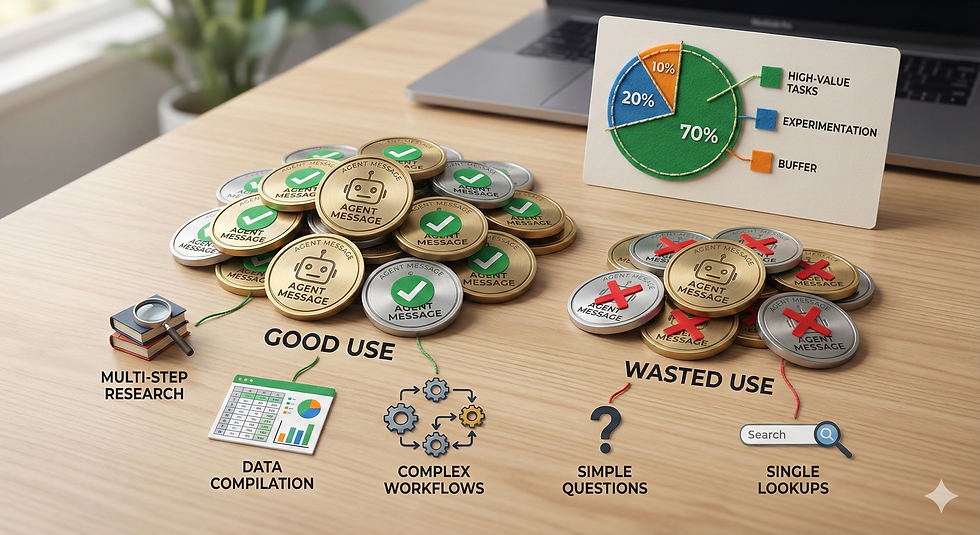
Strategy 5: Save Agent Mode for High-Value Tasks
Research that would take hours. Data compilation from multiple sources. Multi-step workflows with external tools. Don't waste messages on simple lookups.
Your Homework: Complete One Agent Mode Task This Week
Challenge: Use agent mode once this week for something that would normally take you 30+ minutes.
Suggested tasks:
Competitive research with formatted output
Data collection from multiple websites
Meeting prep for your week ahead
Success metric: It saves you actual time.
Document what worked and what didn't for your prompt library.
Just like when you built your first Project, start simple and iterate.
You've come a long way. You started with basic AI conversations. Learned better prompting with the Role + Task formula. Built Projects for persistent context. Created Custom GPTs to share your expertise. Now Agent Mode lets AI execute tasks for you.
This is the full toolkit. Thinking with ChatGPT. Memory with Projects and Gems. Sharing with Custom GPTs. Execution with Agent Mode.
Software is 90% thinking and 10% typing. Agent Mode handles the typing.
You're not replacing yourself. You're eliminating busywork so you can focus on what matters. Work backwards from the outcomes you want. Start simple with one task. See what's possible.
Trust but verify. Always.
My goal is simple: Help everyday people use AI effectively. Not to replace your brain, but to handle the repetitive stuff so you can think about bigger problems.
Your time just got more valuable.
AI Prompts You Can Use Today
Turn Any Task Into an Agent Mode Prompt:
I need to complete this task: [DESCRIBE TASK] Help me create an effective Agent Mode prompt by asking me: - What's the exact outcome I need? - What data/information is required? - Where should the agent look for this information? - What format do I want the output in? - What are the constraints (time, budget, sources)? - What should the agent NOT do? Then write a complete agent mode prompt I can use. |
Create a Reusable Agent Workflow:
I successfully completed this task in Agent Mode: [DESCRIBE TASK AND OUTCOME] Document this as a reusable workflow including: - The exact prompt I should use - What to prepare before starting - Expected time and message cost - Common failure points to watch for - How to verify the output is correct Format it so I can save and reuse it. |
Optimize My Agent Message Usage:
I have [NUMBER] Agent Mode messages left this month. Here are my pending tasks: [LIST TASKS] Help me: 1. Identify which tasks are worth an agent message vs regular ChatGPT 2. Consolidate tasks that can be batched into single prompts 3. Prioritize by time saved vs message cost 4. Write the combined prompts for maximum efficiency |
5 Agent Mode Mistakes That Waste Your Messages
1. Using agent mode for simple questions. Agent mode is for execution, not explanation. If you just need information or ideas, use regular ChatGPT (unlimited). Save agent messages for tasks with multiple steps and actual outputs.
2. Not front-loading all context. Agent mode doesn't remember previous conversations. Every prompt must be self-contained. Include all necessary context, requirements, and constraints in your initial message.
3. Vague instructions. "Research competitors" wastes a message. "Research these 5 specific competitors, extract pricing and features from official sites, create comparison spreadsheet" gets results. Specificity equals success.
4. Not batching related tasks. Don't use three messages for three related tasks. Combine them: "Research A, analyze B, and create C" in one prompt. Saves messages and maintains context.
5. Forgetting to verify outputs. Agent mode is good, not perfect. Always review data, check sources, validate accuracy. Trust but verify applies here more than anywhere else.



Comments